Getting started: from one certificate to a tracked renewal
You have a vendor's certificate of insurance or license on your desk. These six steps take it to a document that has been read, checked against what you require, and set up with reminders to you and the vendor ahead of its expiration date. You can do all of it yourself, without contacting us.
You can start on the Free plan with up to 5 documents at a time, to try uploading and reviewing the records you already have. No credit card.
Vendor upload links need a paid plan. Pro is $49 a month, flat, with no per-vendor fee.
A short demonstration
A certificate is uploaded, read, corrected by a person and checked against a starter checklist. Then a vendor sends a document through an upload link, and the recording ends on where renewal dates and reminders are shown. Paid plansUpload links are part of the paid plans, not the Free plan.
It follows the steps below, from the upload to the reminders.
No sound: the captions tell the story. The business, vendors and documents shown are made up.
Read what the demonstration shows
- Larkspur Group, a made-up business, keeps its vendors' insurance certificates in CompliDrop.
- Upload a certificate you already have, as a PDF or a phone photo.
- CompliDrop reads it. That usually takes under a minute; the wait is cut here.
- Here is what it read: the insured, the insurer, the policy dates and the coverage limits.
- A person compares them with the file. On this certificate the workers' comp policy ends first…
- …so they change the expiration date and save. The document is checked again at once.
- The result against the vendor's starter checklist, “Property vendor”: every requirement met.
- Upload links are part of the paid plans, not the Free plan.
- On a paid plan, send a vendor their private upload link. They need no account or password.
- The vendor opens the link: what you require, your note, and one place to upload.
- It is read and checked against the same checklist, and the vendor sees a one-line result.
- It arrives on your vendor's page, checked. This read is marked for a person to review.
- Renewal dates: the dashboard shows what has expired and what expires in the coming months.
- Reminders go out 60, 30, 14 and 7 days before a document expires.
- From 30 days out, the vendor gets them too.
- The business, vendors and documents in this recording are made up.
1Create your account
Choose “Start free” on this page. The form asks for your full name, your business name, your email and a password of at least 12 characters with a letter and a number. The Free plan covers up to 5 documents at a time and never asks for a card.
You land on your dashboard, where a short welcome tour and a “Get started” list show the same steps as this guide. We also email you a link to confirm your address: your reminders go to it, and it is how you reset your password.
2Add your first vendor
Open “Vendors”, type the business's name and a contact email, and choose “Add vendor”. The contact email is where reminders about that vendor's documents are sent before they expire. Leave it blank and the reminders come only to you.
3Choose what the vendor must prove
Open the vendor. Under “What this vendor must prove”, pick the checklist for their kind of work and choose “Save changes”. The page lists what every document from that vendor will be checked for before you save.
The ready-made checklists cannot be edited. To change one, open “Checklists”, choose “Use this” for an editable copy, then “Add a requirement” to pick requirements from a menu. Each vendor has one checklist.
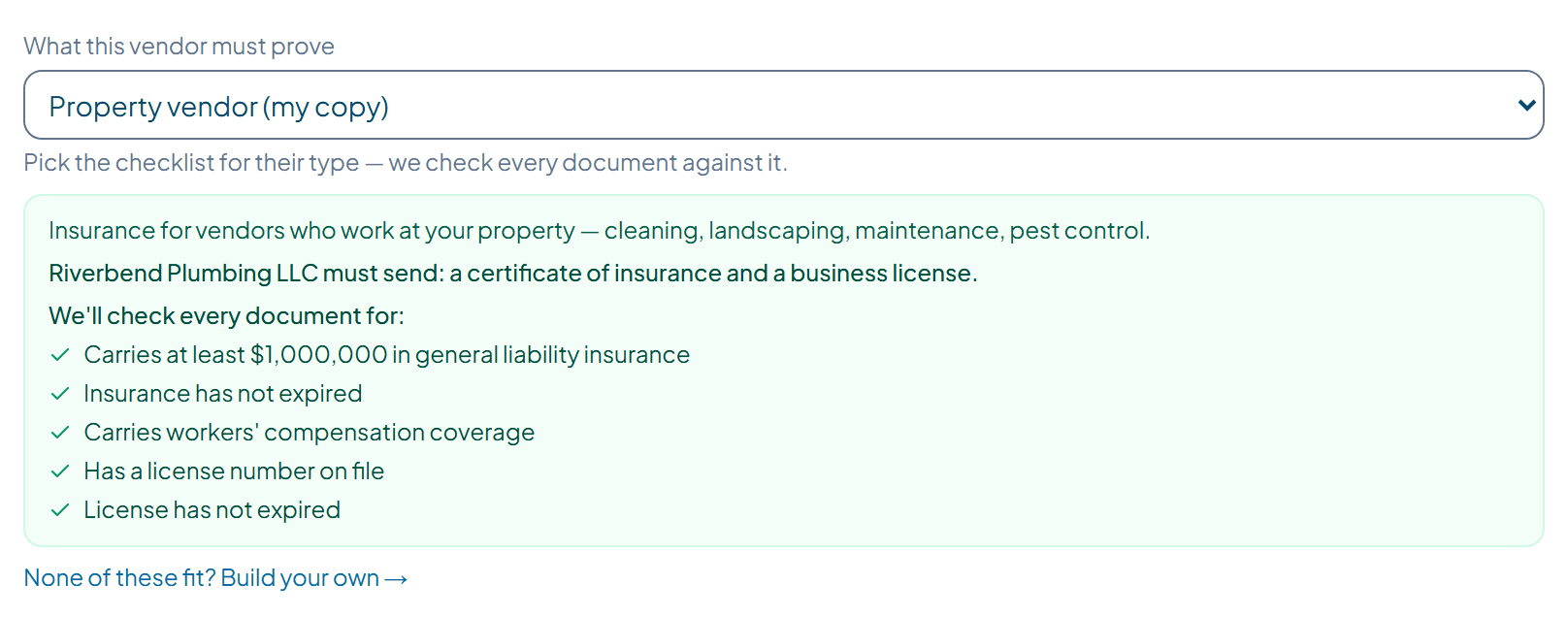
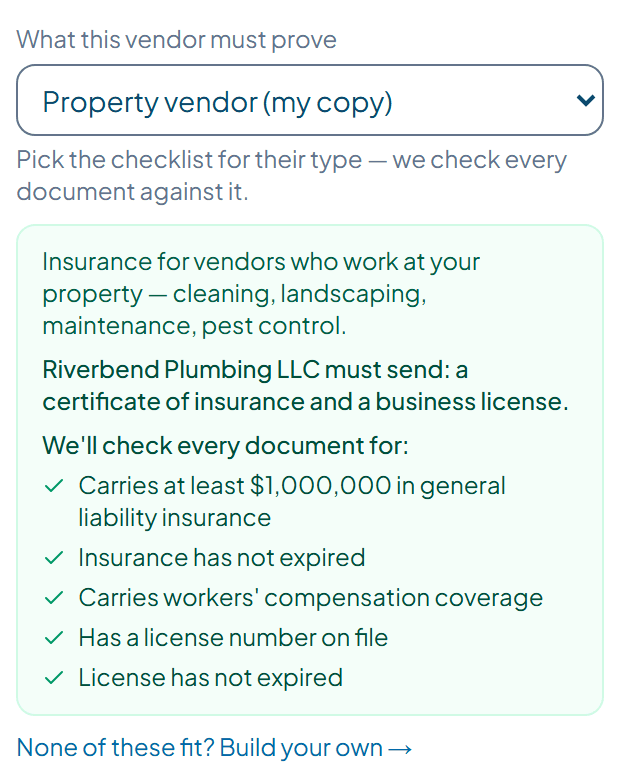
A vendor's page with a checklist chosen, and what it checks. The vendors and documents shown are made up. 4Upload the document
Open “Documents” and drag the file in, or tap to choose it. Pick the vendor it is for, confirm the document type, then choose “Upload 1 file”. A PDF, JPEG, PNG or iPhone photo (HEIC) works, up to 10 MB. Several files can be added at once; each file becomes its own document.
The list shows “Reading…” while the document is read. It usually takes under a minute.
5Read the result, and correct it if needed
Open the document. Four tiles show whether it was read, where it stands against the checklist (Compliant, Action needed, Expiring soon or Expired), when it expires, and whether a person has checked it. For a current document, “What we checked” lists each requirement, or “Why isn't this compliant?” names the one that was not met. For an expired document, the page explains the expiry and points to the renewal or replacement.
Under “Extracted fields” you can change any value and choose “Save changes”; the document is checked again at once. Values CompliDrop was not sure about are outlined for you to compare with the file, which “View file” opens. When everything matches, choose “These details are correct”.
“No verdict yet” means there is no current verdict to rely on. The vendor may have no checklist, the document may have no requirements or still be reading, or a checked document may not yet be in force; its start date is shown.
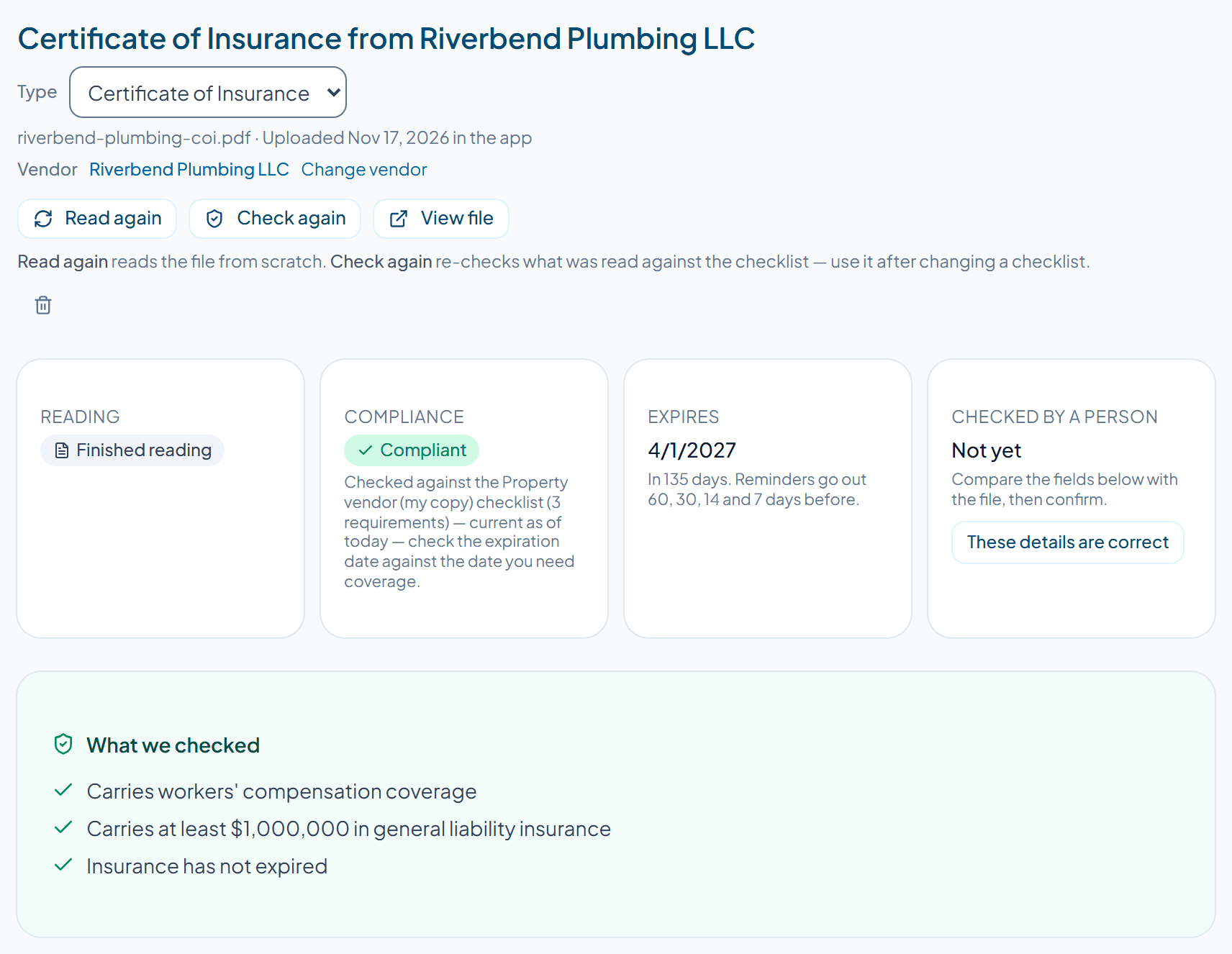
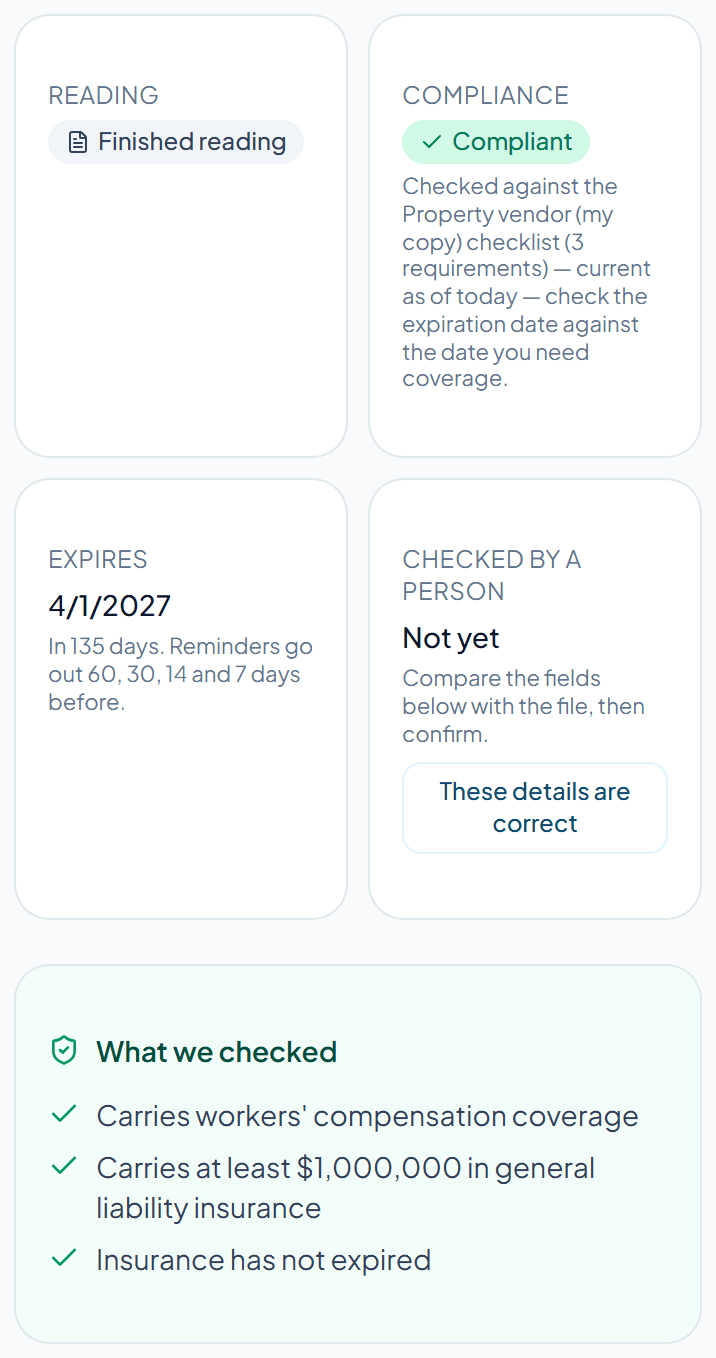
A document's page after the read. The vendors and documents shown are made up. 6Let the reminders run
You do not have to set anything up. Reminders go out 60, 30, 14 and 7 days before a document expires. From 30 days out the vendor gets them too, on every plan. On the “Reminders” page you can switch any reminder point off, or switch off the email to the vendor. Nothing is sent once a document has expired; it shows as Expired on your dashboard instead.
Paid plansOn a paid plan, the vendor's reminder carries a private upload link, and each vendor's page has “Email link to” that vendor and “Copy link”. The vendor needs no login, no password and no account.
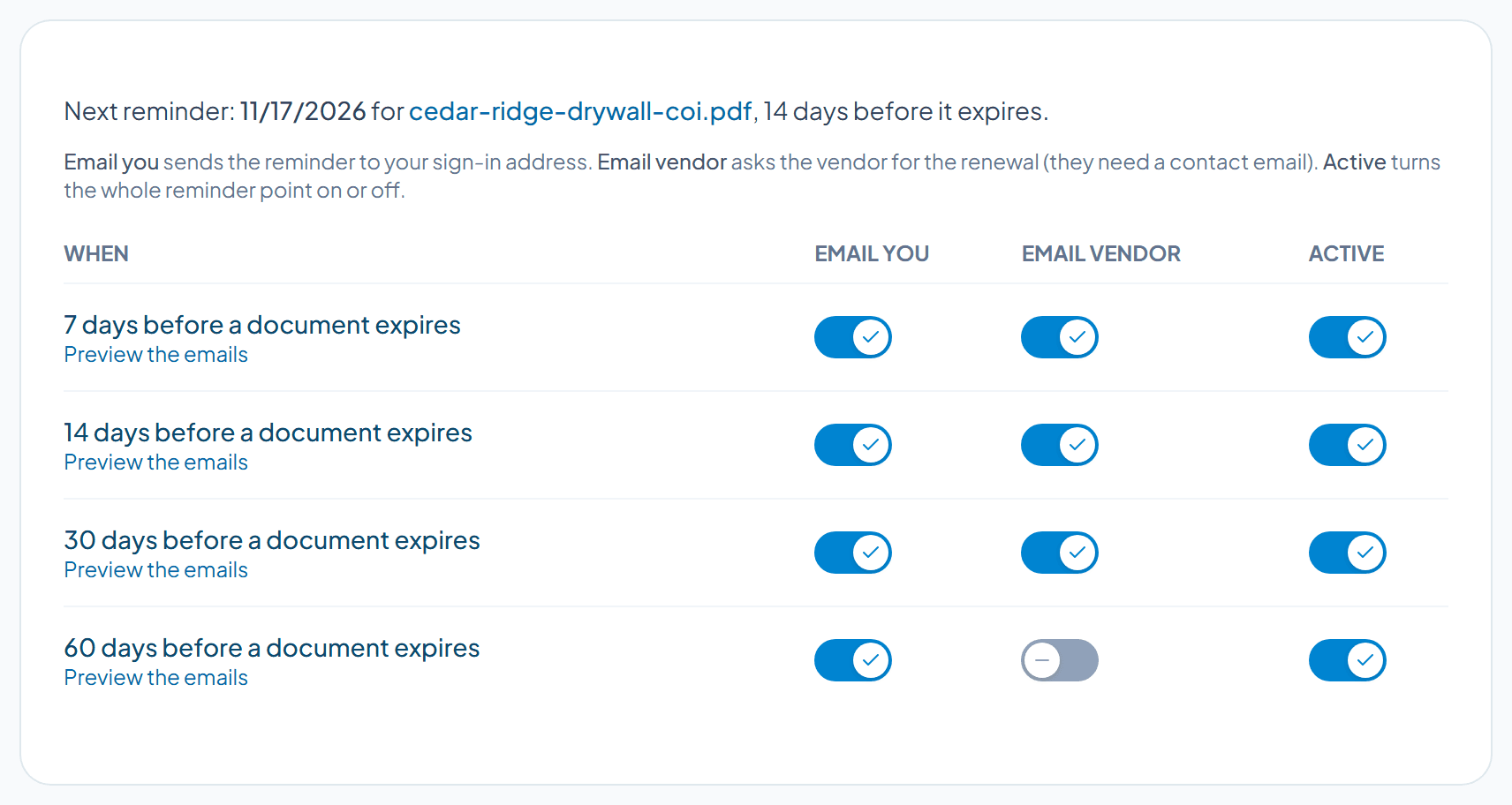
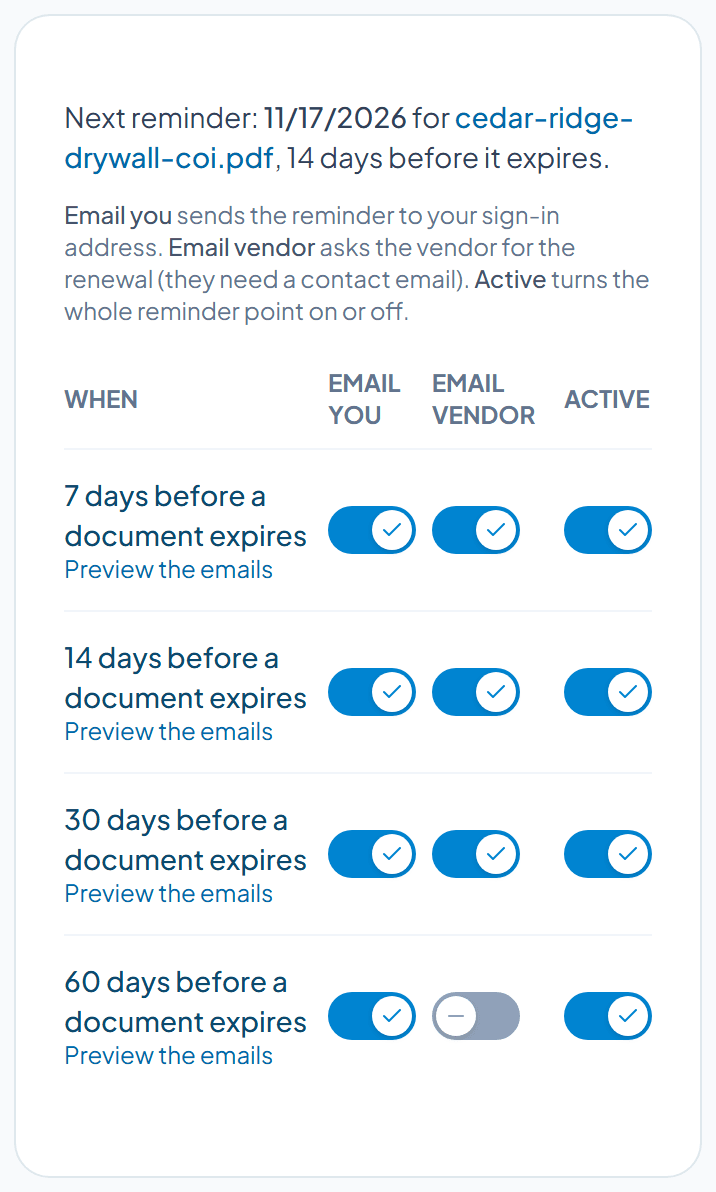
The Reminders page. The vendors and documents shown are made up.
No document handy?
Your dashboard offers a sample certificate to try first. It is read and checked like a real one.
Written for your kind of business
Support
Support is by email only, at support@complidrop.com. We reply within two business days. Business days are Monday to Friday, Western European Time, which is usually five hours ahead of US Eastern Time. That is a promise to reply, not a promise that every problem is solved in two days. There is no phone support and there are no calls.
The FAQ and the contact page have more.
Start with the certificate on your desk.
You can start on the Free plan with up to 5 documents at a time, to try uploading and reviewing the records you already have. No credit card.
Vendor upload links need a paid plan. Pro is $49 a month, flat, with no per-vendor fee.